Once a booking starts, POP UP SHOPS automatically releases your payment. Funds typically arrive within 2 to 3 business days from the release date. To make sure everything runs smoothly, your payout details need to be set up and kept up to date in your account settings before your first booking goes live.
How the payment timeline works
Booking starts: payment is automatically released by the platform on the day the booking begins
Processing: funds are processed through the payment system, this typically takes 2 to 3 business days
Funds arrive: the amount lands in your connected payout account, minus any applicable commission or fees
Note: The exact arrival time may vary depending on your bank or payment provider. If funds have not arrived after 3 business days, contact the POP UP SHOPS support team.Setting up your payout method
Before you can receive payments, you need to add a payout method to your account. Without this, payments cannot be processed.
Go to Settings in your Spacewise dashboard
Scroll down to the Payout methods section
Add your bank account or preferred payout method
Make sure all details are correct and save
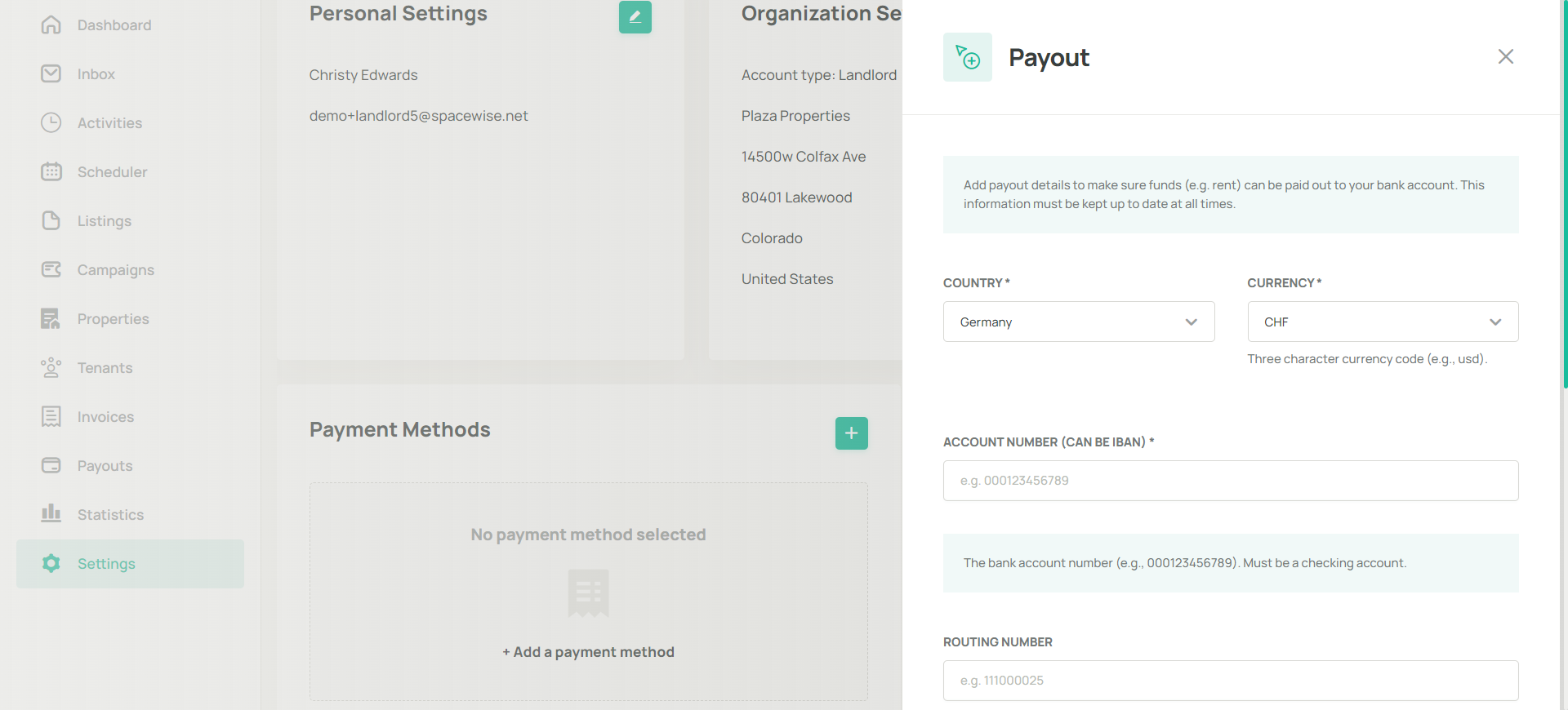
Important: Keep your payout details up to date at all times. Incomplete or outdated information may delay your payments. Changes to payout methods may require re-verification before the next payment is released.What gets deducted from your payout
Payments are released minus any applicable platform commission. The commission rate depends on your Spacewise plan and booking channel.
Light plan users pay a standard marketplace commission of 15% on the total booking value
Pro plan users benefit from volume-based rates
For full details on commission rates, see Are there any commissions?If your payment has not arrived
If funds have not reached your account within 3 business days of the booking start date:
Check that your payout method is correctly set up in Settings
Verify that your bank details including account number, routing number, and currency are correct
Contact the POP UP SHOPS support team with your booking reference
Was this article helpful?
That’s Great!
Thank you for your feedback
Sorry! We couldn't be helpful
Thank you for your feedback
Feedback sent
We appreciate your effort and will try to fix the article